
Best Wireless Gaming Mouse for Precision in 2026
Table of Contents
- Quick Comparison: Top Wireless Gaming Mice for Precision
- What Makes a Wireless Gaming Mouse Precise?
- Gaming Mouse Sensor Comparison: Optical Sensors in 2026
- Wireless vs Wired Gaming Mouse Latency: What the Data Shows
- Gaming Mouse DPI Settings Guide: Finding Your Sweet Spot
- Hand Size, Grip Style, and Surface Optimization
- Battery Life, Charging, and Long-Term Maintenance
- Frequently Asked Questions
Last Updated: September 14, 2026
Quick Comparison: Top Wireless Gaming Mice for Precision
Finding the best wireless gaming mouse for precision starts with knowing what separates a competitive-grade peripheral from an office mouse. Wireless technology has closed the gap with wired connections, erasing the latency penalty that once made competitive players hesitant to cut the cord.
If you're short on time, here's the shortlist. Each is a wireless gaming mouse built around sensor accuracy, low click latency, and comfortable ergonomics.
| Mouse | Price | DPI Range | Connectivity | Best For |
|---|---|---|---|---|
| Attack Shark X11 | $50.00 | 400-22,000 | Wired, 2.4GHz, Bluetooth | Competitive FPS and high-DPI work |
| AULA SM600 | $40.00 | 800-8,000 | 2.4GHz, Bluetooth 5.1, Type-C | All-around gaming and marathon sessions |
| X18 Wireless Gaming Mouse | $35.00 | 2400 | 2.4GHz | Balanced precision and RGB customization |
| 2.4Ghz Mini Wireless Gaming Mouse | $25.00 | 1200 | 2.4GHz | Travel and compact setups |
| Bluetooth Wireless Gaming Mouse | $20.00 | 2000 | Bluetooth, 2.4GHz | Budget-friendly everyday gaming |
The five picks range from $20 to $50, and the differences come down to sensor capabilities, weight, and connectivity modes. Below, we break down how sensor tracking, polling rate, and grip style affect precision, so you can match a mouse to your hand and your game.
What Makes a Wireless Gaming Mouse Precise?
A precise wireless gaming mouse combines three things: an accurate optical sensor, a high polling rate, and a connection that introduces minimal latency. Precision is the sum of sensor tracking quality, report rate, and click speed, a mouse with high DPI but a low polling rate still feels sluggish, and a fast connection can't save a sensor that jitters at high speeds.

Sensor Accuracy, DPI, and CPI Explained
DPI (dots per inch) and CPI (counts per inch) both describe how far the cursor moves for each inch you move the mouse. Higher numbers mean more sensitivity, not necessarily more precision.
A high CPI figure only helps if the sensor tracks cleanly at that sensitivity. Jitter, acceleration, and inconsistent lift-off distance undermine even a high-resolution sensor, so compare the sensor model and its IPS tracking speed before the headline DPI number.
Polling Rate, Click Latency, and Input Lag
Polling rate is how many times per second the mouse reports its position to your computer, measured in hertz; 1,000Hz reports every millisecond. Click latency is the delay between pressing a switch and the game registering it, and input lag is the total delay across sensor reading, wireless transmission, and switch actuation. The wireless link is where modern mice have improved most: a clean 2.4GHz connection with a dedicated receiver now performs close to wired for all but the most latency-sensitive players.
Gaming Mouse Sensor Comparison: Optical Sensors in 2026
Modern optical sensors have matured to the point where the sensor itself is rarely the bottleneck. What separates mice today is tuning, firmware, and whether the shell and feet let the sensor do its job.
| Mouse | Sensor | DPI Range | Max IPS (tracking speed) | Lift-Off Distance | Polling Rate |
|---|---|---|---|---|---|
| Attack Shark X11 | PixArt 3311 | 400-22,000 | ~400 IPS class | ~1-2 mm (adjustable in software) | 1,000Hz over 2.4GHz |
| AULA SM600 | Optical (PixArt-class) | 800-8,000 | ~150-200 IPS class | ~2 mm | 1,000Hz over 2.4GHz |
| X18 Wireless Gaming Mouse | Optical | 2,400 | Entry-tier | Fixed, ~2-3 mm | 1,000Hz over 2.4GHz |
| 2.4Ghz Mini Wireless Gaming Mouse | Optical | 1,200 | Entry-tier | Fixed | 1,000Hz over 2.4GHz |
| Bluetooth Wireless Gaming Mouse | Optical | 2,000 | Entry-tier | Fixed | 125Hz over Bluetooth / 1,000Hz over 2.4GHz |
Why IPS matters more than DPI. Inches per second (IPS) is the maximum speed the sensor can track before the cursor spins out. A flick across a large mousepad can exceed 100 IPS, and low-sensitivity arm-aimers generate the fastest swipes of all. A 400 IPS class sensor, like the PixArt 3311 in the Attack Shark X11, offers significant tracking speed, which can be crucial for fast movements.

Lift-off distance (LOD). LOD is how high you can lift the mouse before the sensor stops tracking. Low LOD (around 1-2 mm) keeps the cursor put when you reposition mid-fight; high LOD makes it drift and ruins micro-adjustments. The Attack Shark X11 lets you tune LOD in software; other picks use a fixed LOD.
Angle snapping and acceleration. Two firmware behaviors quietly destroy precision. Angle snapping straightens small movements into straight lines, fatal in a firefight. Pointer acceleration scales cursor speed with how fast you move, so the same swipe produces a different on-screen distance. Competitive sensors typically ship with both off; some sensors may enable smoothing. It's advisable to turn both off before you judge a mouse.
How to test a sensor in ten minutes. Open a mouse-testing web tool, draw slow circles and fast flicks, and watch whether the line stays smooth (jitter) and stays where you drew it (acceleration). Lift the mouse 2-3 mm and move it, if the cursor moves, your LOD is too high. Repeat on cloth and hard pads; a sensor that stutters only on hard surface has a compatibility problem, not a resolution problem.
Real-world sensor performance depends on the surface beneath it and the condition of the mouse feet. Worn-flat PTFE feet or a worn desk mat can introduce tracking errors.
Wireless vs Wired Gaming Mouse Latency: What the Data Shows
For most players, a modern wireless gaming mouse offers performance comparable to a wired one in everyday play; the gap that once justified staying wired now primarily matters at the highest levels of competitive play. The reason is the dedicated 2.4GHz receiver: unlike Bluetooth, which shares bandwidth and prioritizes battery life, a 2.4GHz dongle creates a direct, low-latency link between mouse and PC.

Bluetooth still has a place: it's convenient for laptops, tablets, and travel, and frees a USB port. But for the lowest input lag, connect over 2.4GHz and keep the receiver close to the mouse to avoid interference. Wired mode remains the fallback, several mice here, including the AULA SM600 and the Attack Shark X11, support a Type-C wired connection for charging and zero-latency play.
Gaming Mouse DPI Settings Guide: Finding Your Sweet Spot
Most players should start between 800 and 1,600 DPI and adjust from there. Higher DPI is not better; the right DPI lets you aim accurately without running out of mousepad. But DPI alone tells you nothing, what determines your aim is the product of DPI and in-game sensitivity, called eDPI.
eDPI: The Number That Actually Matters
eDPI = mouse DPI × in-game sensitivity. Two players with wildly different DPI settings can have identical aim if their eDPI matches: 800 DPI at 1.0 sensitivity equals 1,600 DPI at 0.5, both an eDPI of 800. That's why copying a pro's DPI without their in-game sensitivity does nothing.
Shop Smart. Shop Electrifick Wants. →
cm/360: The Universal Translation
The more useful metric is cm/360, how many centimeters of mousepad movement it takes to turn your character a full 360 degrees. It's DPI- and game-agnostic, so you can carry the same feel across titles. Rough community ranges:
- Tactical FPS (low sensitivity): 40-80 cm/360. Precision over speed; you arm-aim and rely on crosshair placement.
- Arena FPS / tracking-heavy shooters: 20-35 cm/360. A balance of flick speed and tracking stability.
- MOBA, RTS, and general gaming: 10-25 cm/360. Faster cursor travel matters more than pixel-perfect aim.
To find your cm/360, place a ruler on your pad, set a known DPI and sensitivity, and measure how far you move the mouse for one full in-game turn. Most players land between 25 and 45 cm/360 and never need to change it.
A Practical Setup Routine
- Pick a mid-range DPI, around 800 to 1,000. This keeps the sensor in its cleanest tracking range and avoids the interpolation some budget sensors apply at very high DPI.
- Lower your in-game sensitivity until a full swipe across your mousepad turns you roughly 180 degrees.
- Measure your cm/360 and write it down.
- Play a few matches and note whether you overshoot or undershoot targets.
- Adjust in-game sensitivity in small increments, not DPI, to fine-tune. Changing DPI forces the sensor to re-scale; changing in-game sensitivity does not.
- Lock the setting and stop changing it for a week.
Consistency is key. Constantly tweaking DPI can reset muscle memory. If your mouse supports onboard memory, saving your profile to the hardware can prevent settings from being reset by driver updates or a new PC.
DPI and Polling Rate Are Not the Same Lever
A common mistake is raising DPI to make the cursor feel faster when the real problem might be a low polling rate. DPI changes how far the cursor moves per inch; polling rate changes how often the mouse reports position. At 125Hz (typical Bluetooth) it reports every 8 ms; at 1,000Hz, every 1 ms. If your aim feels "floaty" at high DPI, consider adjusting DPI and confirming you're on the 2.4GHz receiver at 1,000Hz.
Hand Size, Grip Style, and Surface Optimization
The best sensor in the world won't help if the mouse doesn't fit your hand. Grip style and hand size can influence control.
There are three main grip styles. Palm grip rests the whole hand on the mouse for stability and comfort over long sessions. Claw grip arches the fingers for a balance of speed and control. Fingertip grip uses only the fingertips for the fastest, most agile movements but demands a smaller, lighter mouse.
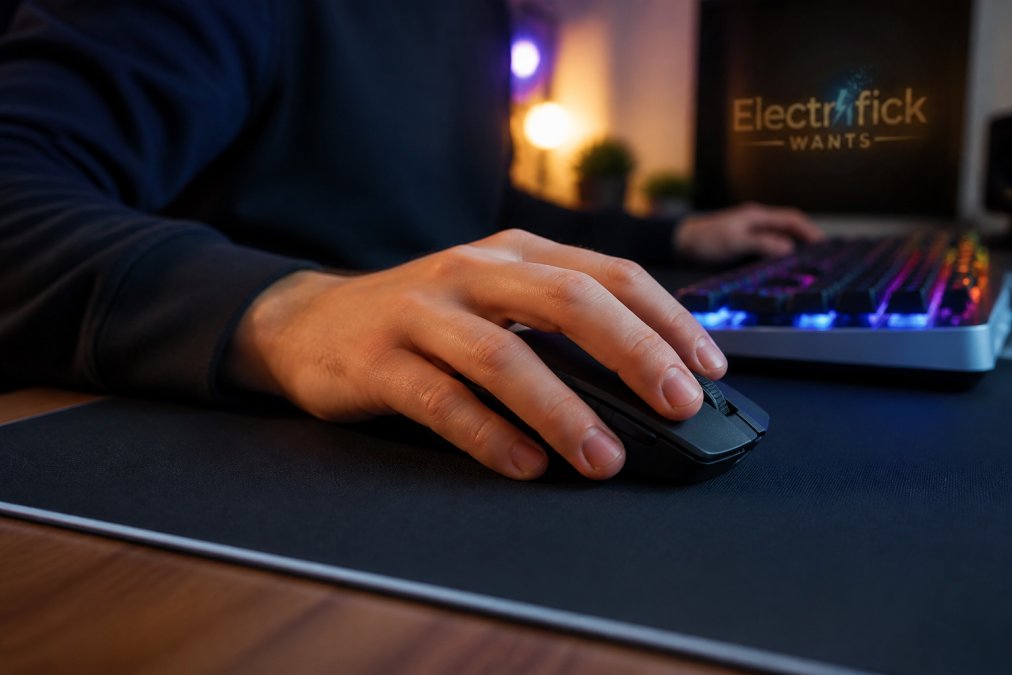
Match the mouse to the grip. Palm and claw players may find a fuller, ergonomic shape like the X18 or the Bluetooth model comfortable for long sessions. Fingertip players and those with smaller hands may prefer the compact 2.4Ghz Mini Wireless Gaming Mouse, which is light and easy to reposition.
Surface matters just as much. A quality cloth desk mat gives consistent tracking and protects your mouse feet. Hard surfaces are faster but wear PTFE feet down quicker, changing the glide and eventually the tracking feel.
Battery Life, Charging, and Long-Term Maintenance
Battery life varies widely across these mice, and how you charge them affects how long they last. The Bluetooth Wireless Gaming Mouse runs up to 90 hours per charge, the Attack Shark X11 delivers up to 65 hours, and the AULA SM600 and X18 both use a 600mAh rechargeable battery.
A few habits keep a wireless gaming mouse running well for years:
- Charge before the battery hits zero rather than deep-cycling it.
- Use the automatic sleep mode instead of leaving the mouse on overnight.
- Store the 2.4GHz receiver in its slot when traveling to avoid losing it.
- Replace worn PTFE feet, which are inexpensive and restore the original glide.
- Wipe the sensor lens and feet with a dry cloth to clear dust.
Long-term maintenance is important. Checking the manufacturer's page occasionally for firmware updates can be beneficial. A well-maintained wireless mouse can offer extended use.
Choosing the right wireless gaming mouse for precision comes down to matching sensor quality, grip style, and connectivity to how you play, not chasing the biggest number on a box. Electrifick Wants curates gaming accessories built around that balance, from the high-DPI Attack Shark X11 to the compact Mini Wireless Gaming Mouse, with free shipping on orders over $50 and a selection vetted for quality and value. Get started with Electrifick Wants and find the gaming mouse that fits your hand and your game.
Frequently Asked Questions
Do professional gamers use wireless mice?
Yes, many professional gamers now use wireless mice in competitive play. Modern 2.4GHz connections have reduced latency to levels that are practically indistinguishable from wired for most players. The freedom of movement and lack of cable drag can actually improve consistency during long sessions. That said, some pros still prefer wired for guaranteed zero interference, especially in tournament venues with crowded wireless environments.
Is there a noticeable latency difference in modern wireless gaming mice?
For most players, no. A quality 2.4GHz wireless gaming mouse delivers click latency within a few milliseconds of a wired equivalent, which is below the threshold most humans can perceive. Bluetooth modes typically add more latency than 2.4GHz, so competitive players should stick with the 2.4GHz receiver. If you notice lag, check for wireless interference from routers or other devices nearby.
What sensor specifications determine the best mouse for aiming?
Three specs matter most: DPI or CPI range, IPS (inches per second) tracking speed, and lift-off distance. A sensor that tracks accurately at high IPS without acceleration or jitter gives you consistent aim. Lift-off distance should be low so the cursor does not drift when you reposition the mouse. Polling rate also matters, since 1000Hz reports your movement every millisecond.
How does polling rate affect wireless mouse precision?
Polling rate determines how often the mouse reports its position to your computer. At 1000Hz, that is once per millisecond. Higher polling rates like 4000Hz or 8000Hz can reduce input lag further, but the benefit is marginal for most players and drains battery faster. For precision aiming, a stable 1000Hz connection with low click latency matters more than chasing the highest polling number.
Can I use a wireless gaming mouse for both gaming and everyday work?
Absolutely. Many wireless gaming mice support multiple connectivity modes, including 2.4GHz for gaming and Bluetooth for productivity. Switching between devices is usually a button press away. The ergonomic shapes and programmable buttons that help in games also work well for spreadsheets, design software, and browsing. Just remember to charge regularly if you rely on it all day.
